Draft a proposal from your notes and photos
Last updated
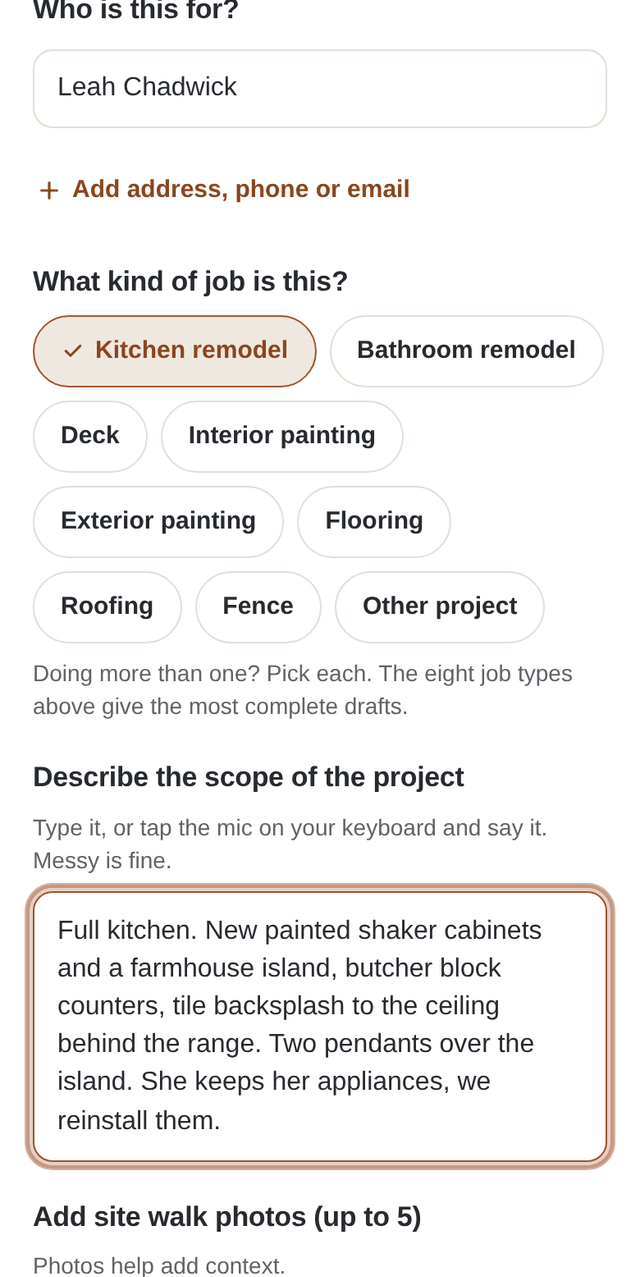
Describe the job in your own words, add a few site walk photos, and choose Draft my proposal. Workbencher writes the scope by part from what you said. You check it, answer anything it could not settle, and add your prices.
Draft it
- Choose New, add who it is for and pick the job type.
- Under Describe the scope of the project, type or dictate what you saw and agreed on. Messy is fine.
- Add up to five site walk photos if they help.
- Choose Draft my proposal.
The first time, Workbencher explains that its proposal templates work together with leading AI models to draft your scope from the details you give. Review the draft before you send it.
If your notes are too thin, you see Not enough to draft yet with up to three questions. Add a line about them, or choose Draft anyway to draft what your notes cover.
Check the draft
The proposal opens with the scope written by part and every price left open. Two cards sit above it, and only you see them, never your client or the PDF:
- Site Walk Summary keeps your notes and photos while you write and price.
- Items To Review lists what the draft could not settle from your notes, such as who buys a fixture.
Answer what you know with a tap, choose Me or Homeowner for who supplies an item, type a few words, or choose Skip. Answers save as you go, and your draft updates itself: a few seconds after your last answer, Workbencher puts your answers into the proposal and says what changed. There is no button to press. You can change an answer later.
Then make it yours
Edit any line, delete what does not fit, add your prices, and share when it is ready. Lines you edited or priced stay as you left them when the draft is updated.
If you have used this month's included proposal drafts, Workbencher drafts from the standard template instead, free. Check it over before you share.