Show your featured work
Last updated
Featured work shows photos of jobs you have finished under Recent Projects, in the About us section of your proposals and the PDF. It is optional and stays off until you add a job with a photo.
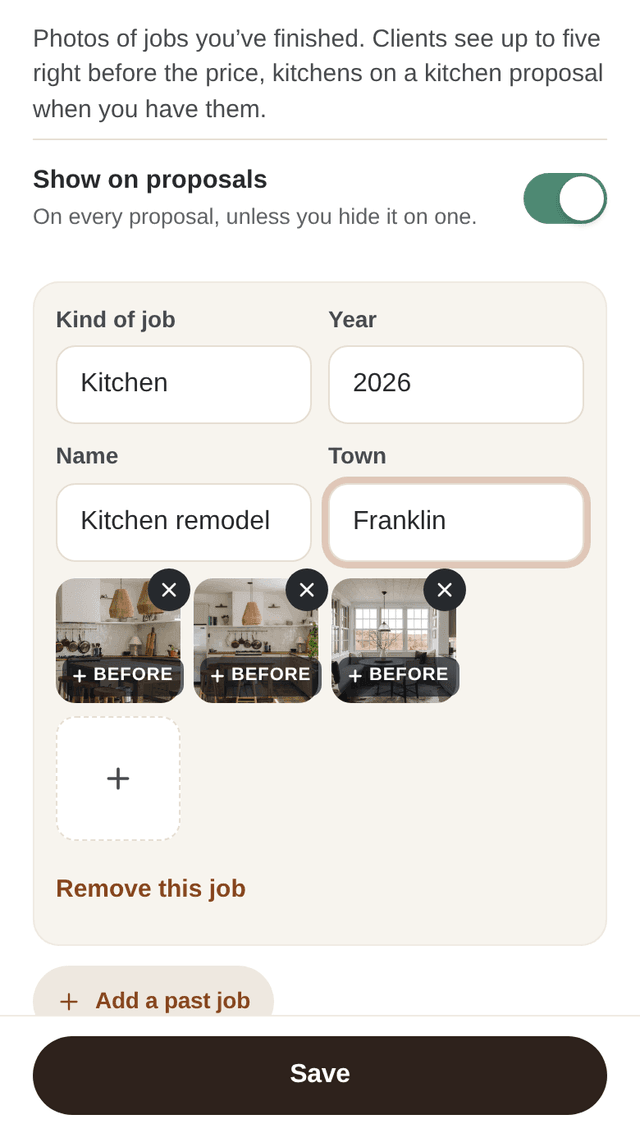
Add your jobs
- In Account, choose Featured work.
- Choose Add a past job and pick photos, up to five per job.
- Choose the kind of job, and add a name, the town and the year if you like.
- Mark a photo Before to pair it with the finished shots.
- Choose Save.
You can add up to 12 jobs. A job without a photo is not kept.
What your client sees
Up to five photos, each captioned with the job's name, town and year. When you have jobs of the same kind as the proposal, those are shown, under a heading like Kitchens we've finished. Otherwise your recent work is shown, under Recent Projects. Your client's name, address and price never appear on a featured photo.
Only add photos the homeowner is OK with you sharing.
Turn it off
- On every proposal: in Account, open Featured work and switch off Show on proposals. Your jobs stay saved.
- On one proposal: in the proposal's Featured work block, choose Hide on this proposal.