What’s new
What we shipped in Workbencher, newest first.
Add Workbencher to your home screen
Put Workbencher on your phone's home screen with its own icon, on iPhone or Android. On Android it opens in its own window, right on your proposals.
How it works: Add Workbencher to your home screen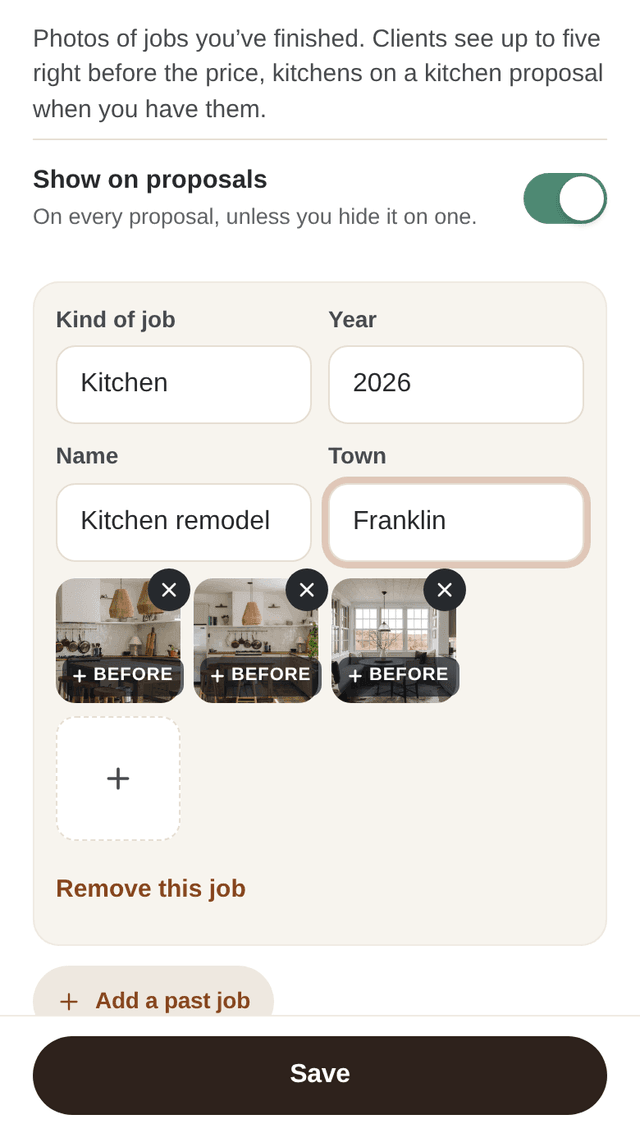
Featured work on your proposals
Add photos of jobs you have finished in Account. Your client sees up to five right before the price, matched to the kind of job when you have them.
How it works: Show your featured work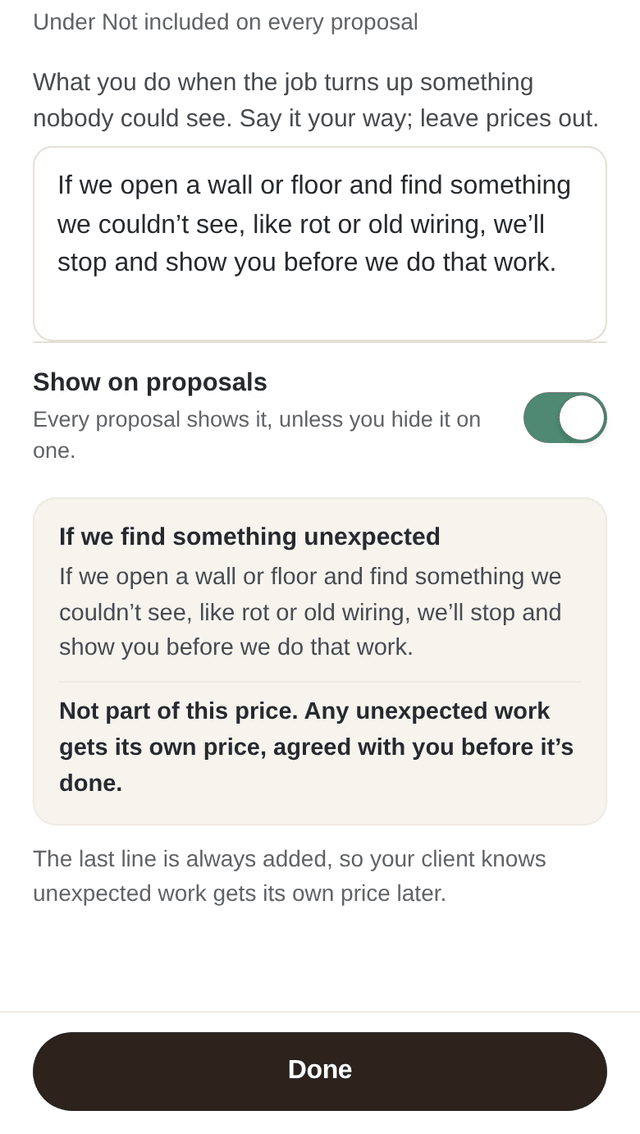
If we find something unexpected
Say in your own words what you do when a job turns up something nobody could see. It sits under Not included on every proposal, never priced, with a line telling your client that unexpected work gets its own price first.
How it works: If we find something unexpectedReach out after a yes, with reminders
When a client accepts, the email now shows their phone and email so you can reach out right away. Reminders follow until you tap I've reached out.
How it works: Reach out after a yes, and opened and accepted alerts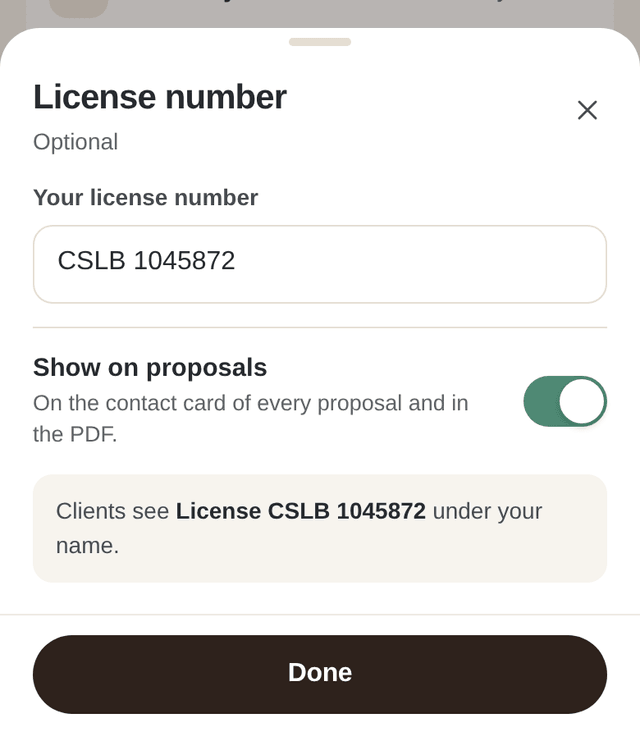
Show your license number
Add your contractor license number in Account and switch on Show on proposals. Your client sees it under your name and in the PDF.
How it works: Show your license number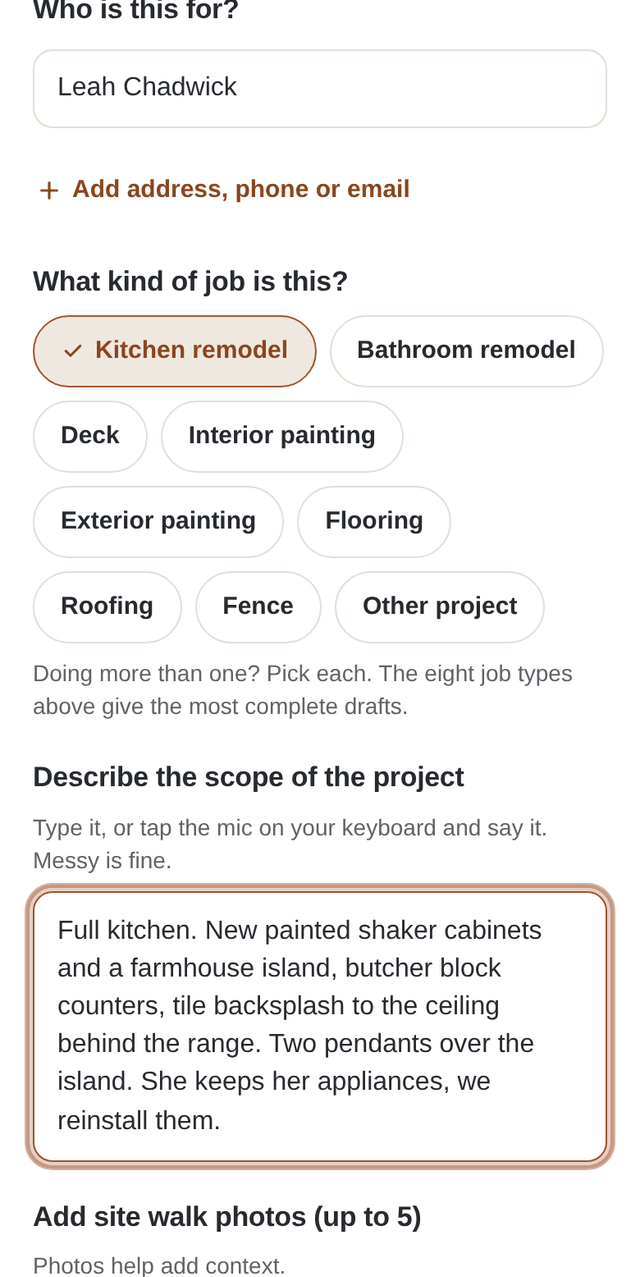
Draft a proposal from your notes and photos
Describe the job in your own words, add up to five site walk photos, and choose Draft my proposal. The scope arrives written by part, and Items To Review lists anything your notes did not settle.
How it works: Draft a proposal from your notes and photos
Still stuck?
Email the Workbencher team at
support@workbencher.com